
Autoloaded options are settings WordPress loads together when it starts handling a request. When unnecessary data accumulates, it can increase memory use and slow down your site or dashboard. To reduce autoload size in WordPress, identify the largest entries and turn off autoload for data that does not need to load on every request.
This guide shows two methods: the new autoload repair feature in the Advanced Database Cleaner plugin, and targeted SQL queries.
Check the WordPress Site Health warning
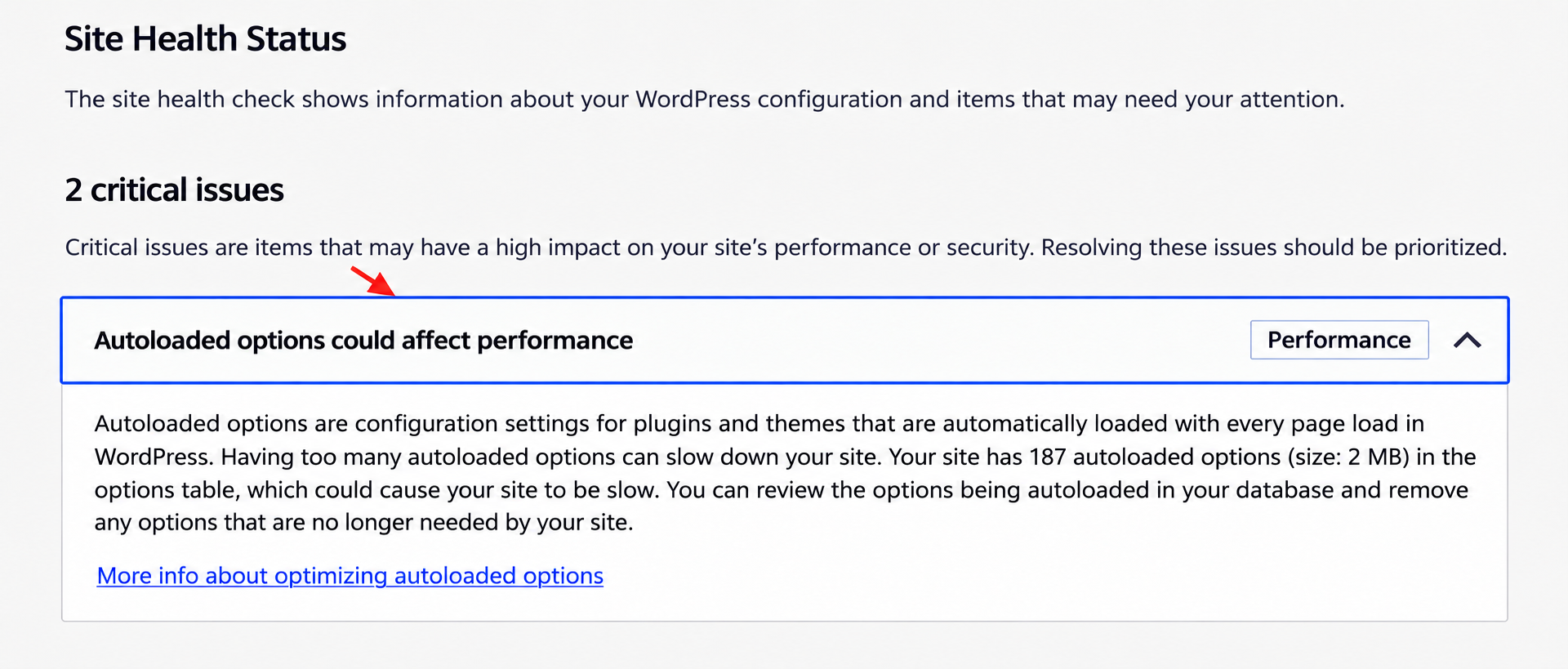
Open Tools → Site Health → Status and expand “Autoloaded options could affect performance.” WordPress reports the number of autoloaded options and their combined size. By default, the warning appears at 800,000 bytes or more - about 800 KB in decimal units, or 781.25 KiB. This threshold can be customized. See the WordPress Site Health check.
Method 1: Reduce autoload size with the plugin
1. Open Options and review the size
In the Advanced Database Cleaner plugin, go to Options. The autoload warning shows your current total. Click its [Filter] link to display autoloaded options, then review the largest entries and the Belongs to column. Use Start a scan for options if you need help identifying their owners; verify unfamiliar entries before changing them.
2. Use the new “Autoload fix” button
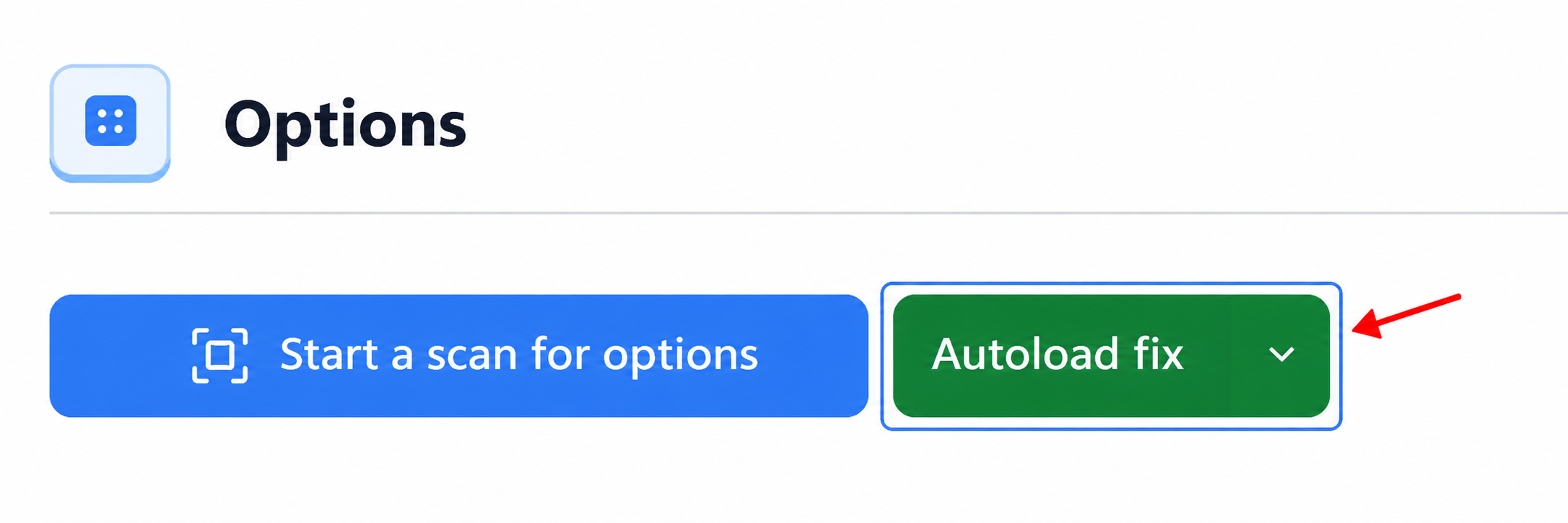
Click Autoload fix to analyze the total and open a review. The feature starts with the largest eligible options, excludes recognized WordPress core options, and proposes turning off enough autoloaded data to bring the total below the warning threshold where possible. It changes autoload flags; it does not delete the option values.
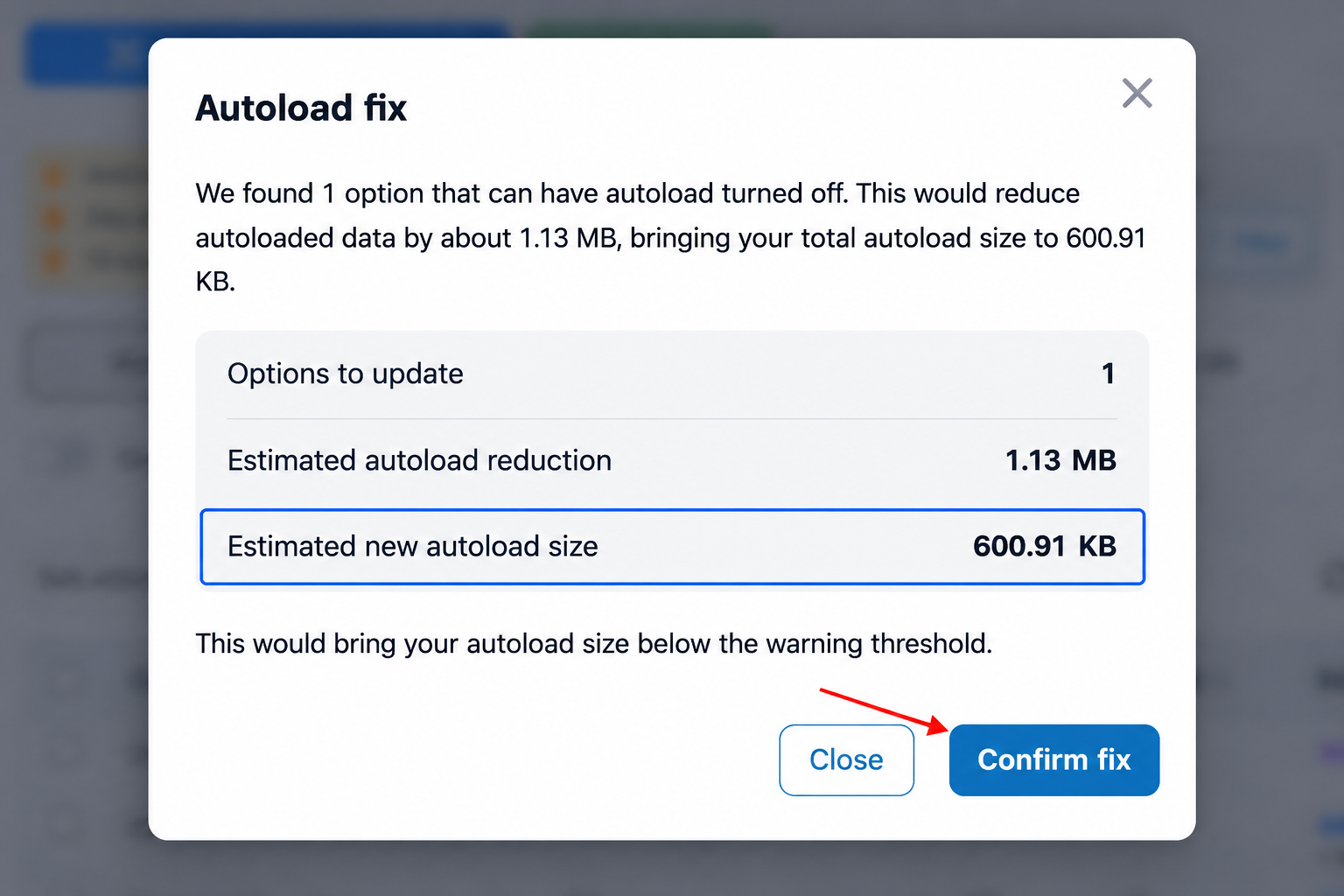
After backing up and reviewing the proposal, choose Confirm fix. Test important pages and workflows afterward. A large option may still be used frequently, so a lower total alone does not prove better performance. If needed, open the arrow beside Autoload fix and choose Undo latest fix to review restoring the latest saved autoload changes.
3. Change only selected options
Prefer to choose entries yourself? Filter autoload to Yes, review the Size and owner, and select only options you have confirmed do not need autoloading. Choose Set autoload to No from Bulk actions, click Apply to selected, and review the confirmation. Options without autoload can still be retrieved when needed through WordPress’s Options API.
Do not bulk-disable everything or delete an option simply because its name is unfamiliar. Also check the Transients tab: autoloaded transients contribute to the total even though the plugin lists them separately.
Method 2: Reduce autoload size with SQL
In phpMyAdmin or your database manager, select the correct WordPress database and open the SQL editor. Replace wp_options below with your actual options table, including its prefix. On Multisite, use the intended site’s options table. Export a backup before running an UPDATE.
1. Measure the total
SELECT COUNT(*) AS autoloaded_options,
       COALESCE(SUM(OCTET_LENGTH(option_value)), 0) AS total_bytes,
       ROUND(COALESCE(SUM(OCTET_LENGTH(option_value)), 0) / 1024, 2) AS total_kib
FROM wp_options
WHERE autoload IN ('yes', 'on', 'auto-on', 'auto');
Checking only autoload = 'yes' can undercount modern installations. Since WordPress 6.6, the default autoloaded values include yes, on, auto-on, and auto. The query uses that default set; custom filters can change it. WordPress documents the autoload value list here.
2. Find the largest entries
SELECT option_name, autoload,
       OCTET_LENGTH(option_value) AS size_bytes
FROM wp_options
WHERE autoload IN ('yes', 'on', 'auto-on', 'auto')
ORDER BY size_bytes DESC
LIMIT 20;
Identify each option’s plugin or theme and confirm whether it needs to load on every request. An infrequently used report cache may be a candidate; a setting used throughout your site may not be. Record each option’s original autoload value so you can restore it if necessary.
3. Disable autoload for one verified option
For WordPress 6.6+, replace the placeholder below with the exact option name you reviewed. Keep the WHERE clause: it limits the change to that option.
UPDATE wp_options
SET autoload = 'off'
WHERE option_name = 'REPLACE_WITH_VERIFIED_OPTION_NAME'
AND autoload IN ('yes', 'on', 'auto-on', 'auto');Verify the result and prevent regrowth
Re-run the size query or refresh the plugin, then revisit Tools → Site Health. Test login, forms, search, checkout, and any affected plugin features. Compare server response times under similar cache conditions. If something regresses, restore the recorded autoload flag and clear the object cache again, or use the plugin’s latest-fix undo when applicable.
If the size grows again, identify which plugin recreates or updates the option and ask its developer about autoload behavior. Keep plugins updated and review leftovers after uninstalling them. The goal is a useful, lean autoloaded set - not zero autoloaded options.
FAQ
Does disabling autoload delete settings?
No. The values remain stored and can be loaded when needed. Deleting the option is a separate action.
What size should I aim for?
Below the default 800,000-byte warning threshold is a useful starting point. Keep necessary options and measure actual performance.
Why do the totals differ?
Rounding, cached data, custom autoload filters, and separately listed transients can explain differences. Compare bytes and include every autoloaded value.

Comments