

Is your wp_postmeta too large, making backups heavier or raising questions about site performance? This table stores information attached to posts, pages, products, and other content, so growth is often normal. The useful task is to identify what occupies the space, remove confirmed leftovers, and preserve the metadata your site still needs.
This guide uses the Advanced Database Cleaner plugin to inspect large entries and clean selected records. Optional SQL queries help diagnose the table without changing its contents.
Why does wp_postmeta grow?
Each metadata row connects a post_id to a meta_key and meta_value. More content, richer page layouts, and additional plugin features can all add legitimate records. A few large values or many small rows can account for substantial storage.
There is no universal healthy table size. A large, well-used table is different from a table full of abandoned data. If pages are slow, investigate the actual queries and server resources as well as storage; deleting valid metadata is not a performance strategy.
Separate useful data from cleanup candidates
wp_postmeta too large? Review unused data
Consider a site that removed old content and replaced a plugin. Its database may contain metadata for deleted posts, leftovers from the retired plugin, and useful fields for current content. Inspect these groups separately instead of deleting every key with an unfamiliar name.
1. Find the largest entries
Open the Advanced Database Cleaner plugin and go to Post meta. Review the size information, then use Size big than to narrow the list to larger values. Use Search for when investigating a particular metadata key. Clear unrelated filters between checks so you do not accidentally hide candidates.
Inspect the metadata key, value, post ID, and Belongs to information together. A large page-builder value attached to an active page may be essential. Many small records can also dominate the table, so an empty large-value filter does not mean there is nothing to investigate.
2. Review unused records and ownership
Set the Unused filter to Yes to inspect rows whose parent post is missing. Combine it with Search for to review one known group, as in the example below. This relationship check differs from identifying data left by an uninstalled plugin. Our guide to unused postmeta explains missing-parent cleanup further.
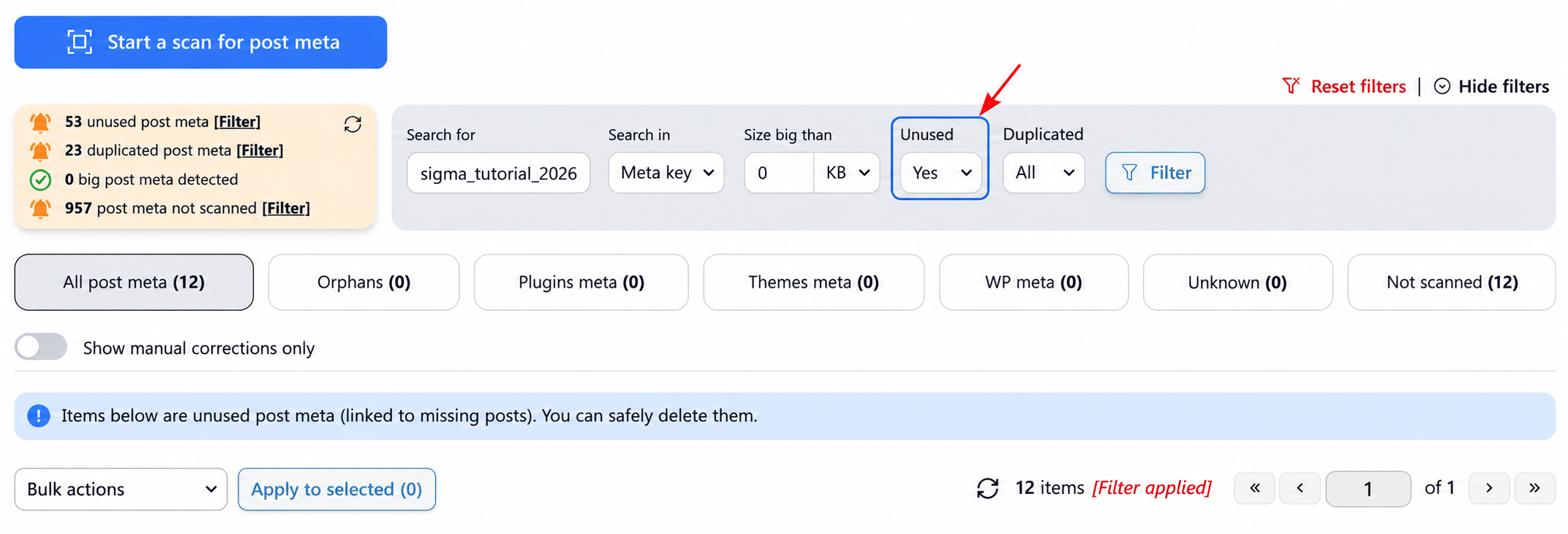
For plugin leftovers, run a scan and review Belongs to. Ownership detection is available in the editions that include scanning. Treat unknown ownership as a reason to investigate, not permission to delete. Deactivated plugins may still need their settings when reactivated, and another plugin may use shared metadata.
3. Delete reviewed rows, then check duplicates
Select the unused rows you have confirmed are unnecessary and choose Delete under Bulk actions. Check the number in Apply to selected, click it, then review the confirmation and choose Delete. Start with a small selection and check the affected content before repeating the cleanup for remaining verified records.
Next, clear the Unused filter, keep any intended search restriction, and set Duplicated to Yes. Inspect these candidates separately and use the same selection steps only for redundant records. Preserve required values; never empty or drop the entire wp_postmeta table.
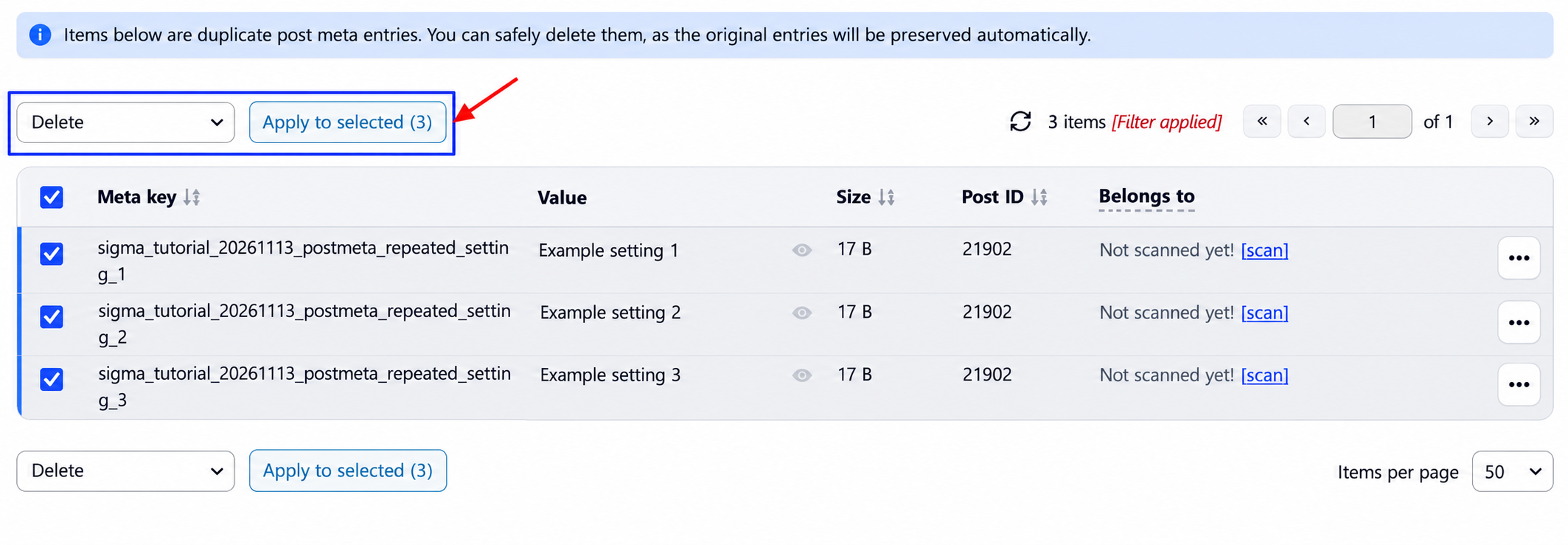
Example: keep the useful metadata
In this sample dataset, 24 metadata rows included missing-parent records, extra duplicates, and useful entries. After reviewing and deleting the first two groups, nine original or valid rows remained:
The removed metadata values totaled 828,051 bytes, about 809 KiB. This measures value data, not database file space returned to the server. Your result depends on the records you review and remove.
Optional: diagnose wp_postmeta with SQL
In phpMyAdmin, select the correct database. Replace wp_ with your actual prefix; on Multisite, use the intended site’s matching posts and postmeta tables. These queries only read data. Large aggregations still require resources, so run them on staging first.
Find keys using the most value storage
SELECT meta_key,
       COUNT(*) AS row_count,
       ROUND(SUM(OCTET_LENGTH(meta_value)) / 1048576, 2) AS value_mib
FROM wp_postmeta
GROUP BY meta_key
ORDER BY value_mib DESC
LIMIT 20;
This ranks metadata keys by their combined value bytes. It excludes indexes, keys, and other storage overhead, so it will not equal the full table size. Use the result to choose which keys to inspect in the plugin, not as a deletion list.
Count rows with missing parents
SELECT COUNT(*) AS unused_rows
FROM wp_postmeta AS pm
LEFT JOIN wp_posts AS p ON p.ID = pm.post_id
WHERE p.ID IS NULL;
This checks for missing parent posts. It does not identify every leftover from removed plugins: those records can remain attached to valid posts. Review candidates in the plugin before any cleanup.
wp_postmeta too large again? Find the source
Refresh the plugin’s counts and revisit representative pages, custom fields, SEO settings, and product details. Confirm that the intended rows disappeared and required content still works. If a particular key grows rapidly again, investigate the plugin or import process creating it.
If Site Health instead warns about autoloaded options, follow our guide to reducing autoload size. That concerns the options table and requires a different diagnosis.
FAQ
Is wp_postmeta too large for my site?
There is no fixed limit for every site. Investigate unnecessary data, growth, backup size, and query performance together.
Can I delete every repeated key?
No. Several values under one key can be intentional. Confirm that the records are redundant before removing them.
Will cleanup always speed up my site?
No. Removing unused data reduces clutter, but speed depends on the workload. Measure affected pages and queries before and after.

Comments