

As a WooCommerce store grows, its database grows with it. Products are edited, orders fail or get abandoned, customer accounts become inactive, coupons expire, scheduled actions generate logs, and caches are continuously rebuilt.
Much of that data is useful when it is created. Some of it, however, remains in the database long after it is needed.
That is why we built WOptimize: a cleanup and optimization plugin created specifically for WooCommerce. It gives store owners, developers, and agencies one place to find unnecessary WooCommerce data, inspect it, remove it safely, and automate recurring maintenance.
WOptimize includes 39 focused cleanup and diagnostic tools across products, orders, customers, coupons, Scheduled Actions, sessions, and caches. It also provides previews, advanced filters, flexible retention rules, bulk actions, HPOS-aware links, automation, and execution logs.
In this article, we will take a complete tour of the plugin and explain what each module can do.
1. Overview
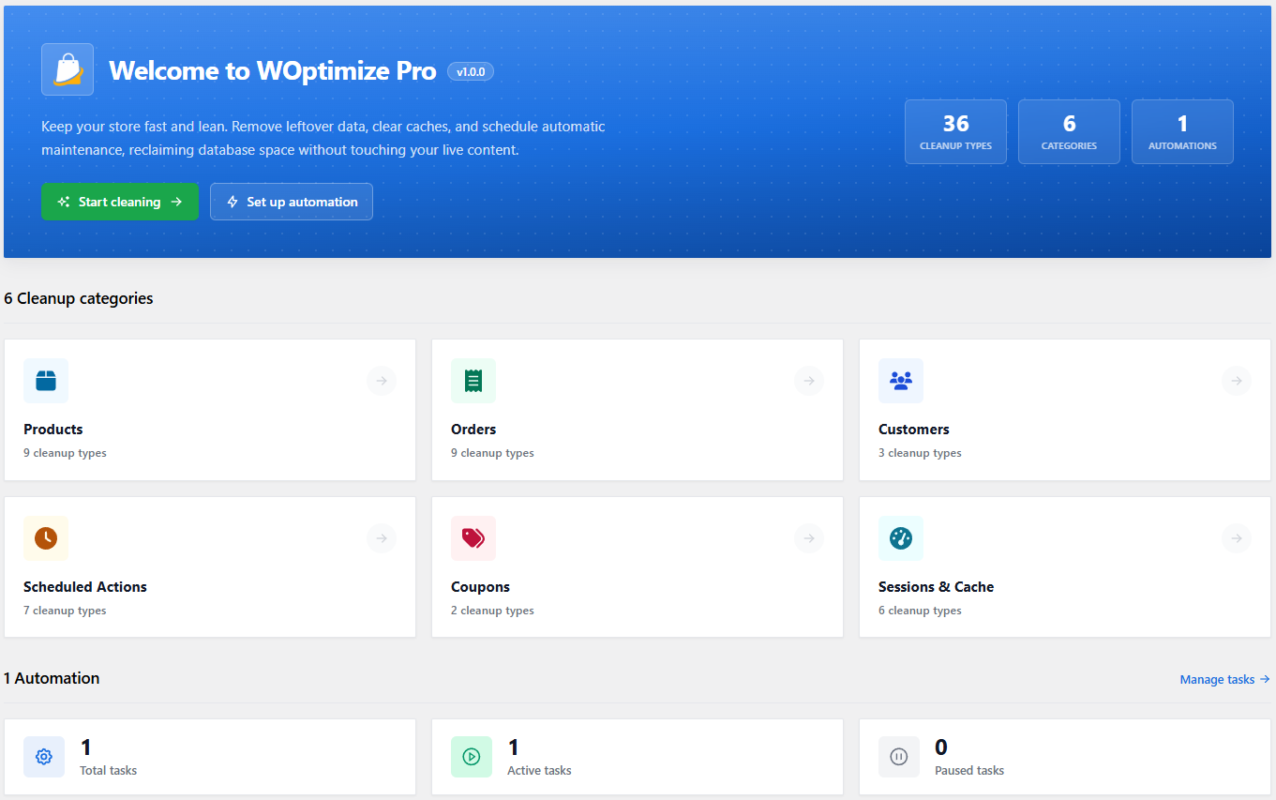
The Overview page gives you a quick picture of the cleanup tools available in your store. The tools are organized into six clear categories:
- Products
- Orders
- Customers
- Scheduled Actions
- Coupons
- Sessions & Cache
You can also see the total number of automation tasks and how many are active or paused. Direct links to settings, documentation, support, and diagnostic information make the Overview page a practical starting point for every maintenance session.
2. Products Cleanup
WooCommerce product data is spread across posts, metadata, taxonomies, comments, reviews, and variations. Deleting or changing products can leave records behind in several of those places.
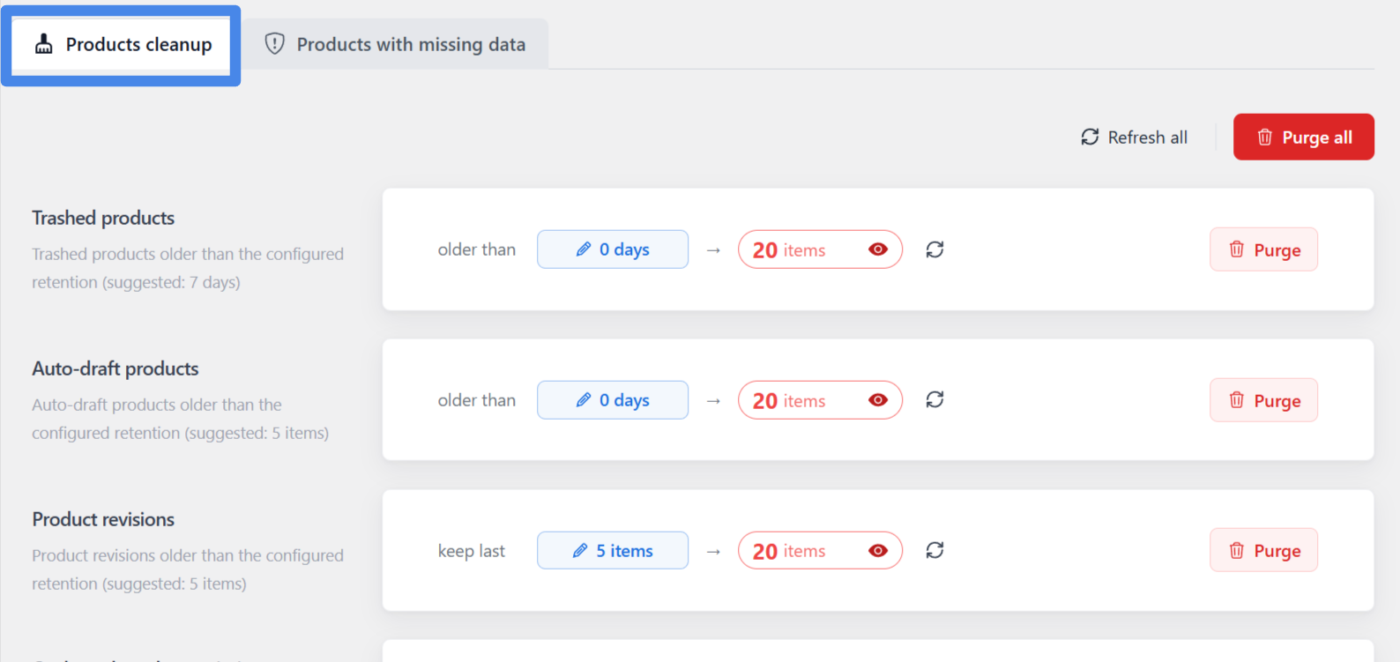
The Products module includes 10 tools to clean common product clutter and identify products that may need attention.
Product cleanup tools
- Trashed products: Permanently remove products that have remained in the trash beyond your chosen retention period.
- Auto-draft products: Clean temporary product drafts created but never completed.
- Product revisions: Remove old revisions while keeping a recent history for each product.
- Orphaned product variations: Delete variations whose parent product no longer exists.
- Unused product attributes: Find attributes such as size or color that are no longer assigned to any product.
- Orphaned product terms: Clean leftover category and tag relationships from deleted products.
- Orphaned comments: Remove comments attached to products that no longer exist.
- Orphaned product meta: Clean price, stock, SKU, and other metadata left behind by deleted products.
- Orphaned product reviews: Remove reviews and ratings whose products no longer exist.
Products with missing data
The tenth tool is different. Products with missing data is a diagnostic view for valid products with required or inconsistent information. It helps you investigate catalog problems using retention controls, filters, searchable and sortable columns, and clear missing-data indicators.
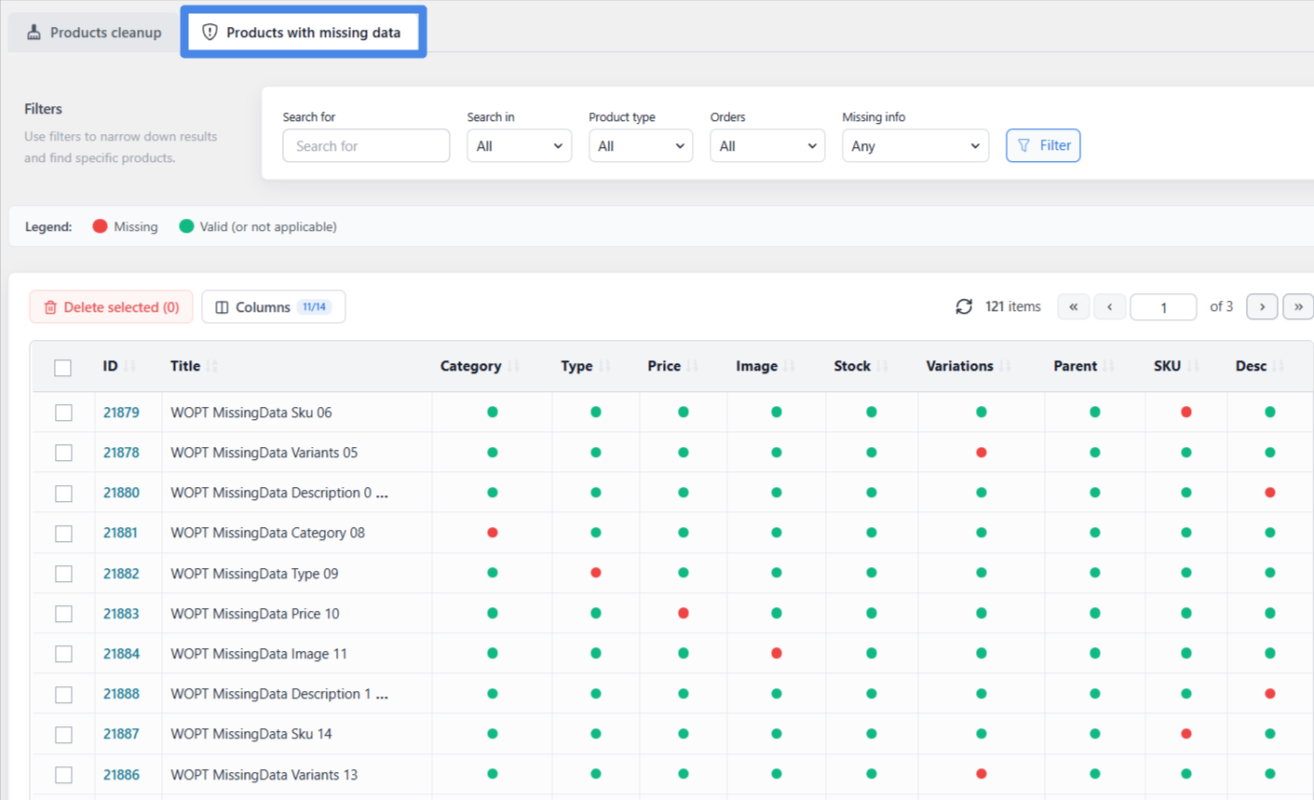
Because these are real products, WOptimize does not treat this section as routine clutter. It is not included in “Purge all” or automated tasks. Review every result carefully before deleting anything.
3. Orders Cleanup, Including HPOS Support
Busy stores can accumulate large numbers of pending, abandoned, failed, canceled, and trashed orders. Deleted orders can also leave related item, metadata, address, or operational records behind.
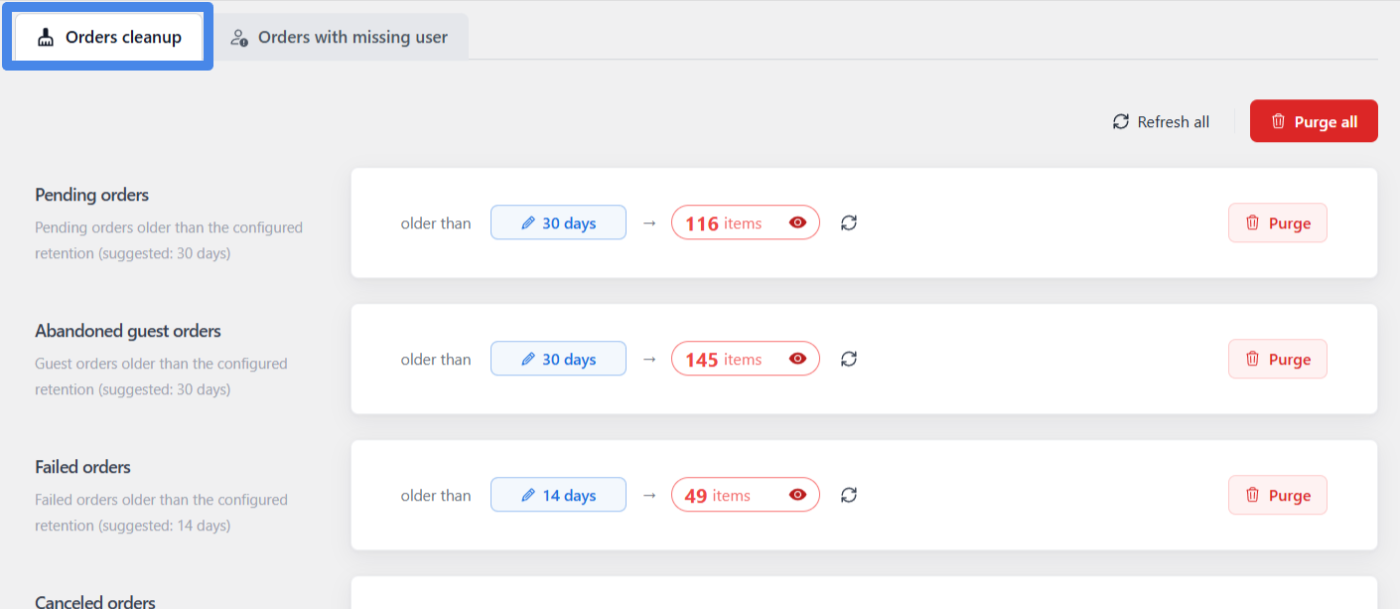
The Orders module includes 10 tools:
- Pending orders: Find pending orders older than your configured retention period.
- Abandoned guest orders: Remove old guest checkouts that were started but never completed.
- Failed orders: Clean failed orders after keeping the recent history you need for support or troubleshooting.
- Canceled orders: Remove old canceled orders according to your retention policy.
- Trashed orders: Permanently delete orders that have remained in the trash.
- Orphaned order items: Remove order-item rows whose parent order no longer exists.
- Orphaned order item meta: Clean metadata that points to deleted order items.
- Orphaned addresses: Remove address rows that reference deleted orders when WooCommerce HPOS is enabled.
- Orphaned operational data: Clean HPOS operational rows whose orders no longer exist.
Orders with missing users
The diagnostic Orders with missing user view finds valid orders whose associated WordPress user account no longer exists. This can happen after customer accounts are manually deleted or removed by another plugin.
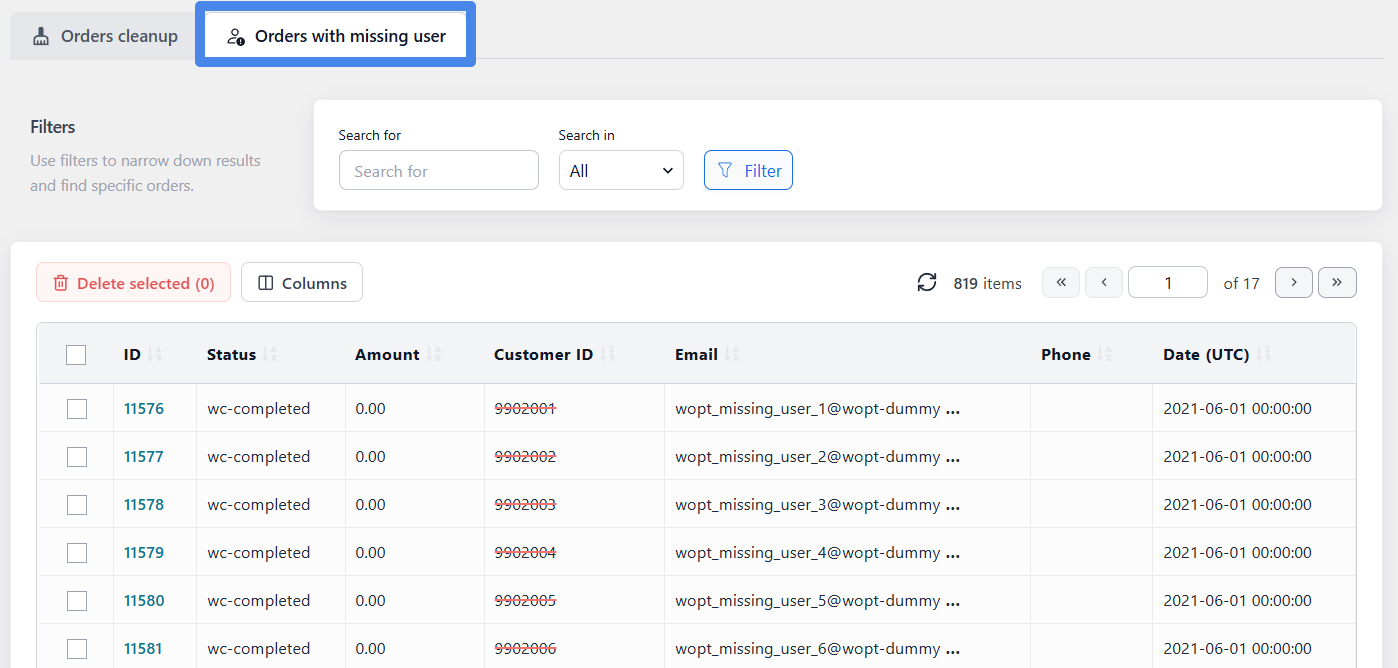
These orders may still be important for accounting, reporting, refunds, or legal recordkeeping. WOptimize therefore keeps them separate from routine cleanup and automation. Use the date controls, filters, and preview table to investigate them, and only delete an order when you fully understand the consequences.
WOptimize is also HPOS-aware. Where applicable, order IDs in preview tables link to the correct WooCommerce order screen whether your store uses traditional post storage or High-Performance Order Storage.
4. Customers Cleanup
Customer cleanup requires more care than clearing a cache. A customer record can be connected to order history, analytics, reports, and support activity. WOptimize separates clear orphaned data from customer records that require a business decision.
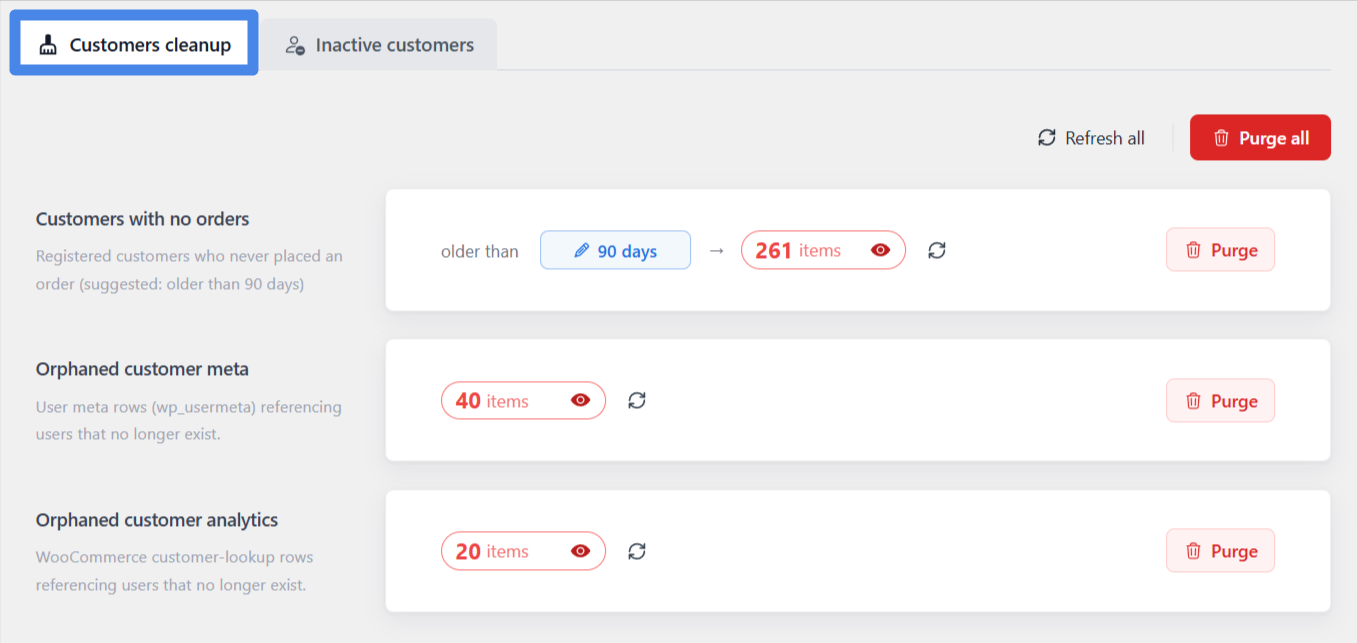
The Customers module provides 4 tools:
- Customers with no orders: Find registered customers who have never placed an order, with a configurable age rule.
- Orphaned customer meta: Remove user metadata that references users who no longer exist.
- Orphaned customer analytics: Clean WooCommerce customer lookup rows linked to deleted users.
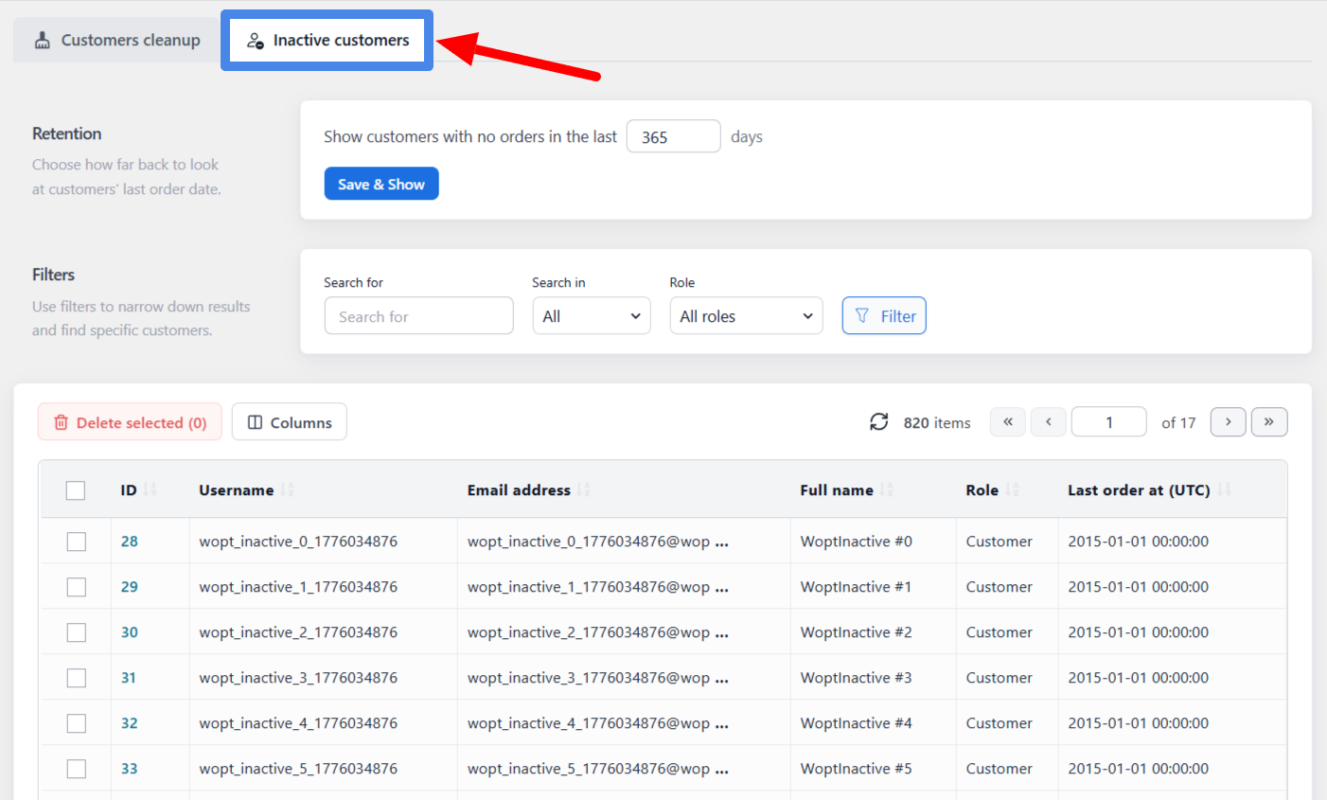
- Inactive customers: Review customers who ordered in the past but have not placed an order for a chosen period.
Inactive customers
This is a diagnostic view, not a routine purge. It is useful when reviewing dormant accounts, but those accounts and their history may still have commercial or reporting value. For that reason, inactive customers are excluded from “Purge all” and automation.
5. Scheduled Actions Cleanup
WooCommerce and many of its extensions rely on Action Scheduler to process background jobs. Over time, completed, failed, and canceled actions and their logs can become a significant source of database growth.
WOptimize provides 7 Scheduled Actions tools:
- Completed actions
- Failed actions
- Canceled actions
- Completed action logs
- Failed action logs
- Canceled action logs
- Orphaned action logs whose parent action no longer exists
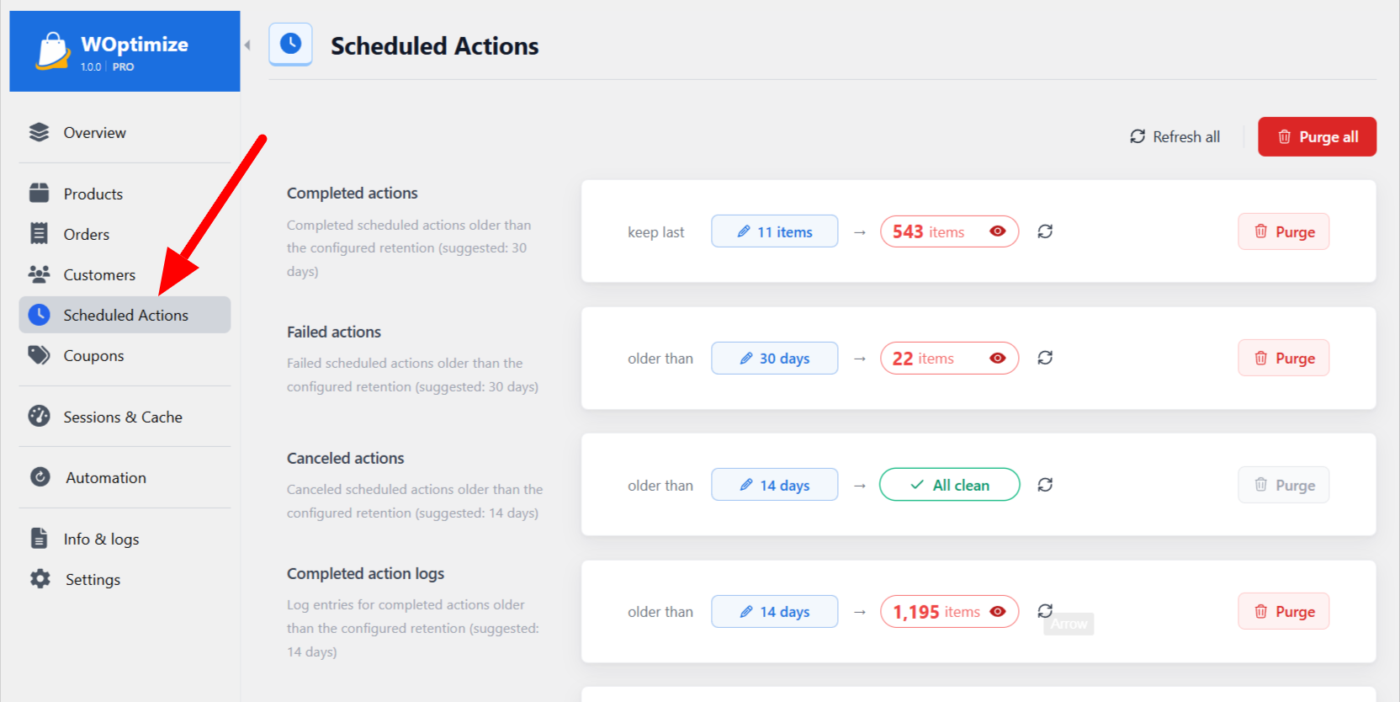
Each tool supports retention rules, so you can preserve recent events for troubleshooting while removing older history. For example, you may keep failed actions longer than completed actions because they are more useful when investigating a problem.
This gives you control over Action Scheduler growth without blindly emptying its tables.
6. Coupons Cleanup
Promotional campaigns often leave expired or never-used coupons in the store. WOptimize provides two focused tools:
- Expired coupons: Find coupons whose expiration date has passed and remove them after your chosen retention period.
- Unused coupons: Find coupons with a usage count of zero and clean old entries that are no longer needed.
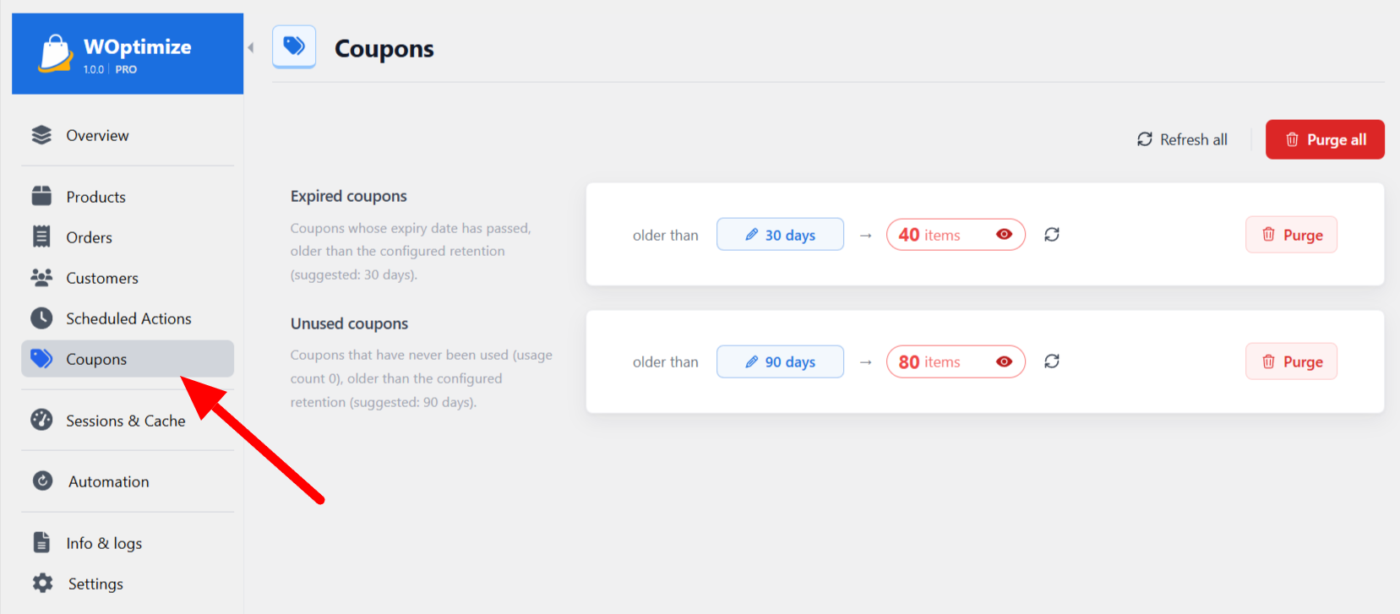
Both tools can be previewed and filtered before cleanup, and both support retention rules. This is useful when you want to keep recently expired campaign codes for reporting while removing years of older entries.
7. Sessions & Cache: Six One-Click Maintenance Tools
WooCommerce stores use sessions and several caches to keep shopping and reporting responsive. These records can usually be regenerated, but stale entries may accumulate or need to be cleared after changes.
The Sessions & Cache module includes 6 one-click tools:
- Expired customer sessions: Remove WooCommerce session rows whose expiry date has passed.
- WooCommerce transients: Clear cached product, report, and shop data stored as WooCommerce transients.
- Theme info cache: Refresh the theme information shown in WooCommerce system status.
- WooCommerce Analytics cache: Invalidate Analytics and Reports cache data so it is rebuilt when needed.
- Template cache: Clear cached WooCommerce template paths, which is useful after editing or overriding templates.
- WooCommerce.com cache: Clear cached subscription, connection, and update-check information.
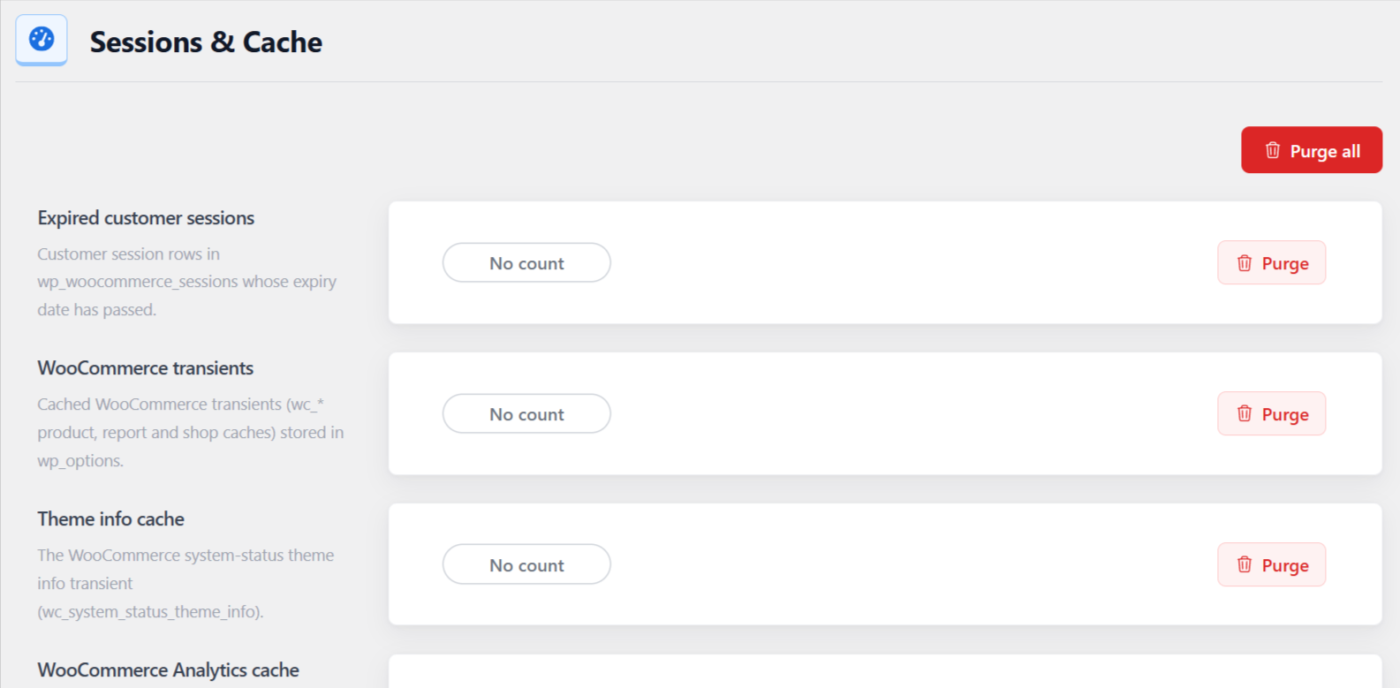
Unlike database records that require inspection, these tools do not show counts or detailed previews. Their cached data is designed to be regenerated by WooCommerce when required.
8. Preview Before You Clean
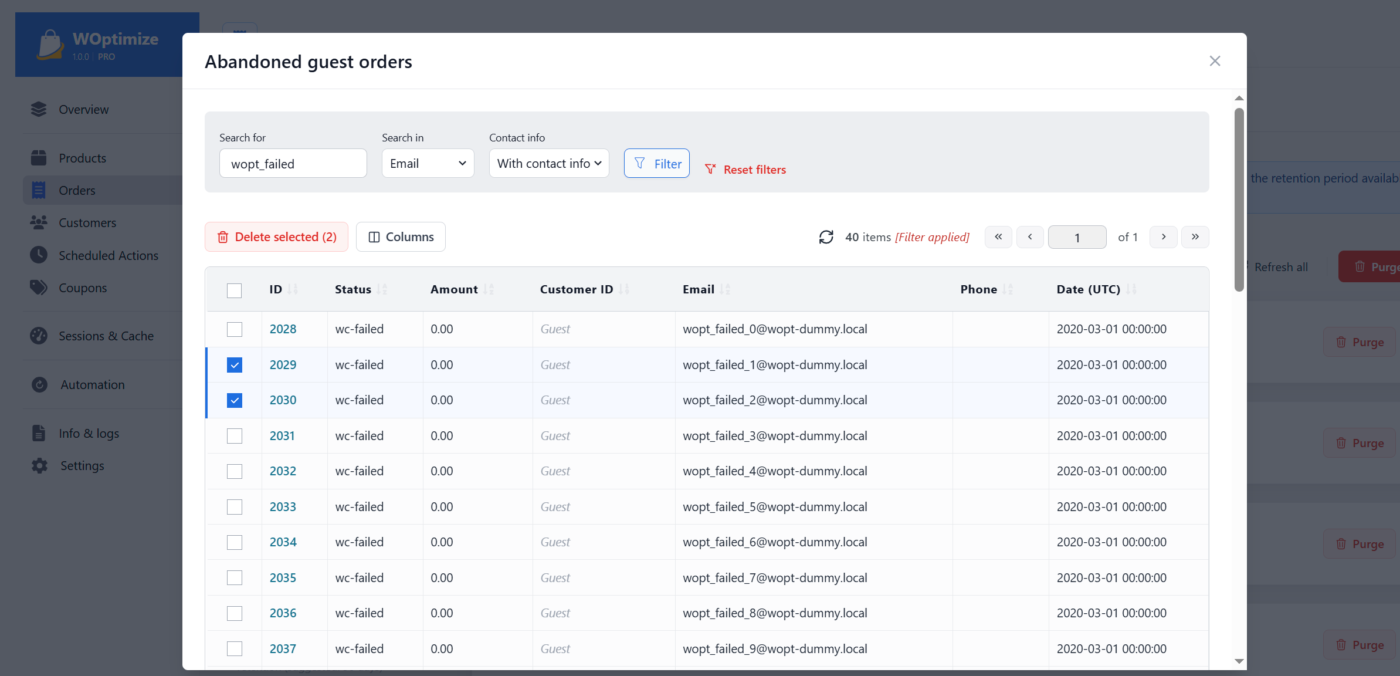
A cleanup tool is only useful when you can understand what it is about to remove. WOptimize lets you click an item count and inspect the matching records before running the purge.
Depending on the cleanup type, the preview provides:
- Search and contextual filters
- Sortable columns
- Pagination and configurable items per page
- Column visibility controls
- Links from IDs to the matching WordPress or WooCommerce edit screen
- Selection and bulk deletion for specific records
This creates a clear workflow: detect, preview, filter, verify, and then clean. You can delete selected entries from the preview or return to the module and purge the complete result set.
9. Flexible Retention Rules
Cleaning everything is rarely the right policy. Recent revisions, failed orders, scheduled-action logs, and expired coupons may still be useful for support, audits, or reporting.
For supported cleanup types, WOptimize lets you preserve data in two ways:
- Keep the last X days: Delete only records older than the chosen age.
- Keep the last X items: Preserve a defined number of recent records. Where an item has a parent, the rule can preserve items per parent for example, the latest revisions for each product. Otherwise, the most recent items are kept globally.
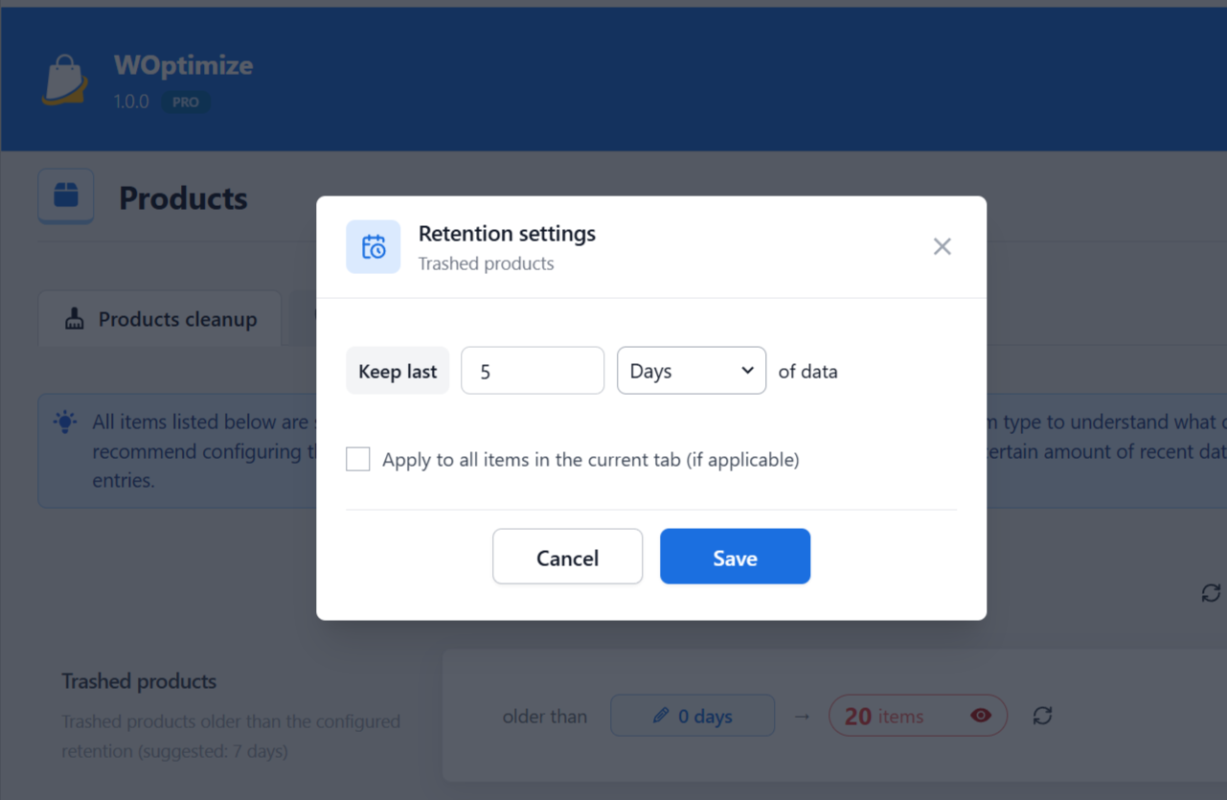
WOptimize applies suggested retention values by default, and you can adjust them for the needs of each store. The same retention controls are available when creating automated tasks.
10. Bulk Purging and Cleanup Methods
You can purge one cleanup type at a time or use Purge all to process the routine cleanup items in the current module. Diagnostic views are intentionally excluded.
WOptimize also lets you choose in the settings how cleanup operations are performed:
- Native WordPress functions: Trigger WordPress and WooCommerce deletion mechanisms and their related hooks for a deeper, compatibility-focused cleanup.
- Direct SQL queries: Reduce application overhead and process large data sets more quickly, with the tradeoff that some WordPress hooks are bypassed.
A configurable database batch size helps you balance speed and memory use on large stores. Smaller batches reduce memory pressure; larger batches may complete work faster when the server has sufficient resources.
11. Automation: Put Store Maintenance on a Schedule
Manual cleanup is useful for the first review. Recurring maintenance is what keeps a database lean over time.
With WOptimize Automation, you can combine cleanup operations from different modules into a single task. For each task, you can:
- Give the task a clear name
- Select any combination of supported product, order, customer, coupon, Scheduled Actions, session, and cache operations
- Configure a separate retention rule for each supported operation
- Choose the local start date and time
- Run the task once, hourly, twice daily, daily, weekly, or monthly
- Create the task as active or paused
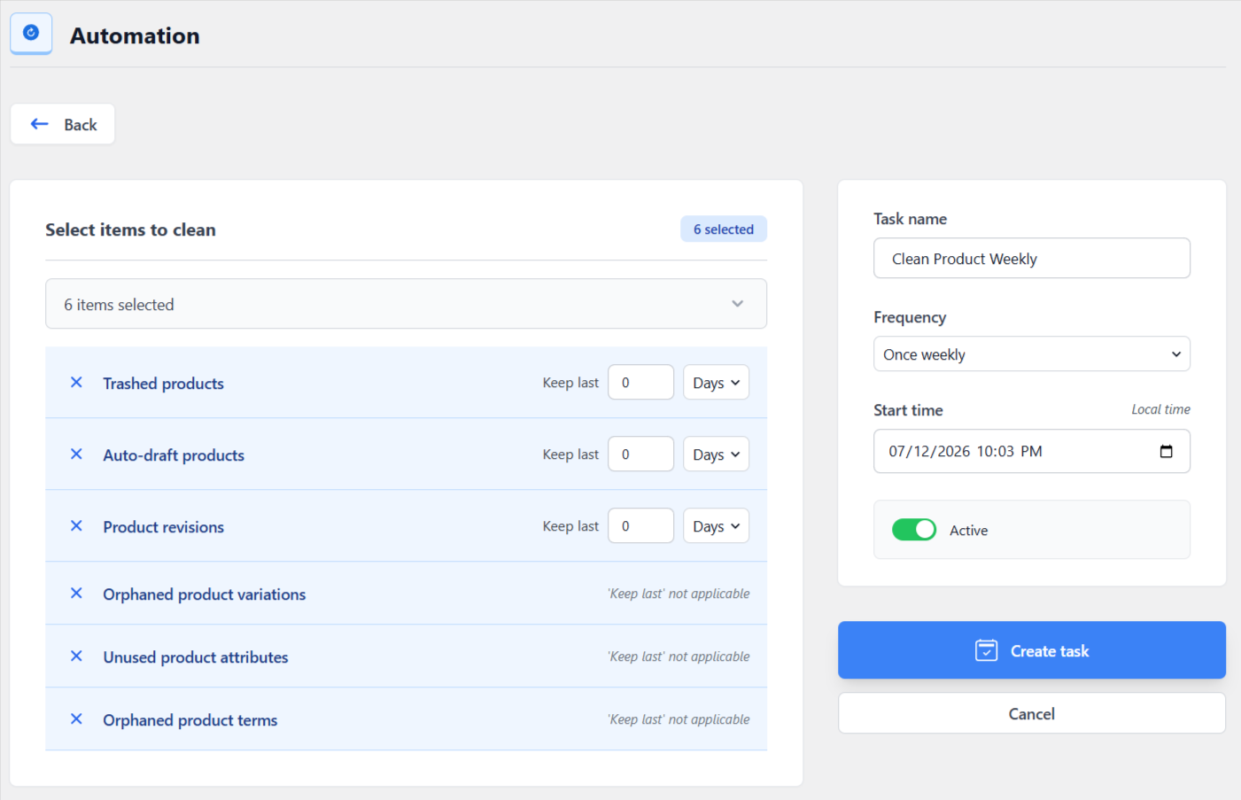
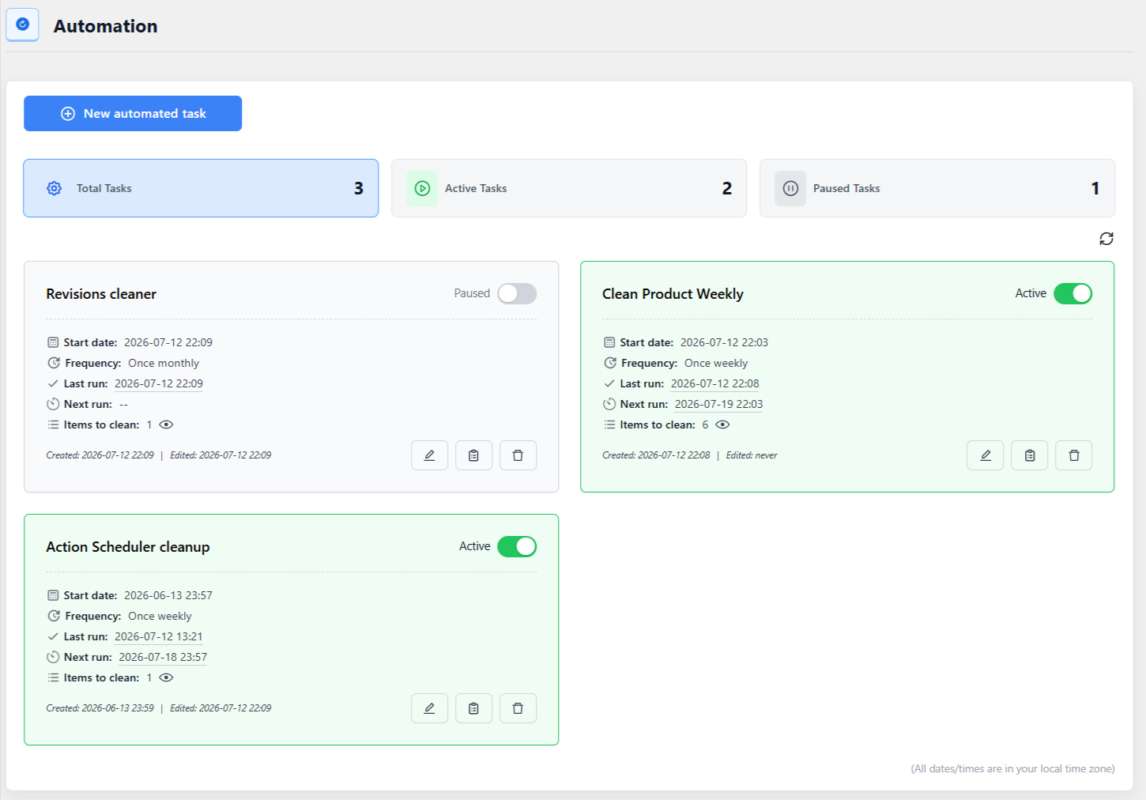
The main Automation page shows each task’s status, schedule, previous run, next run, and selected cleanup items. Existing tasks can be activated, paused, edited, or deleted at any time.
Every task also has its own events log. This gives you a history of its executions so you can confirm when it ran and review the details recorded for each cleanup.
Diagnostic tools: Products with missing data, Orders with missing user, and Inactive customers are not available for automation because they require human review.
12. System Information and Logs
When a cleanup does not behave as expected, useful diagnostics should be easy to reach. WOptimize includes an Info & Logs area with:
- System info: Review environment details and refresh, copy, or download the information for support.
- Errors log: Inspect events recorded by WOptimize.
- WP debug: Access the WordPress debug log from the plugin interface when debugging is configured.
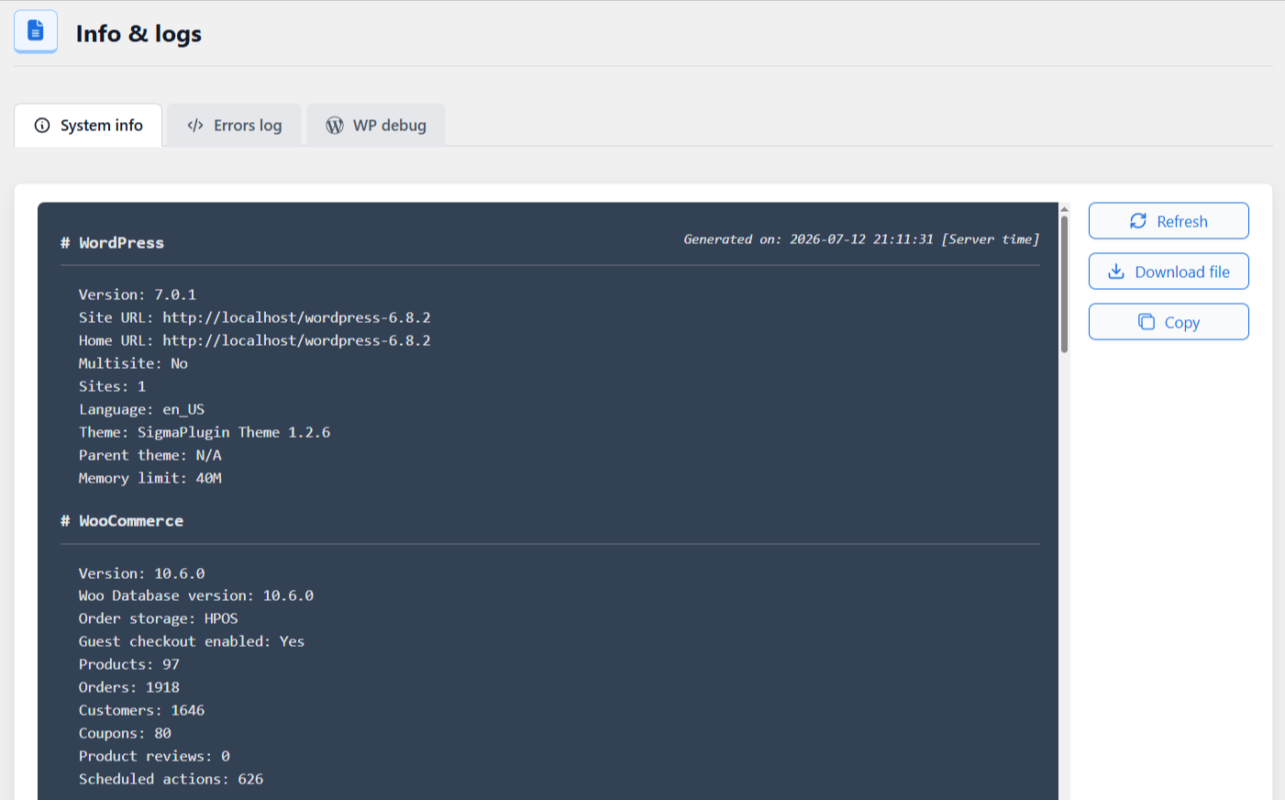
This centralizes the technical information needed to investigate issues or share accurate context with support.
13. Settings That Adapt to Your Workflow
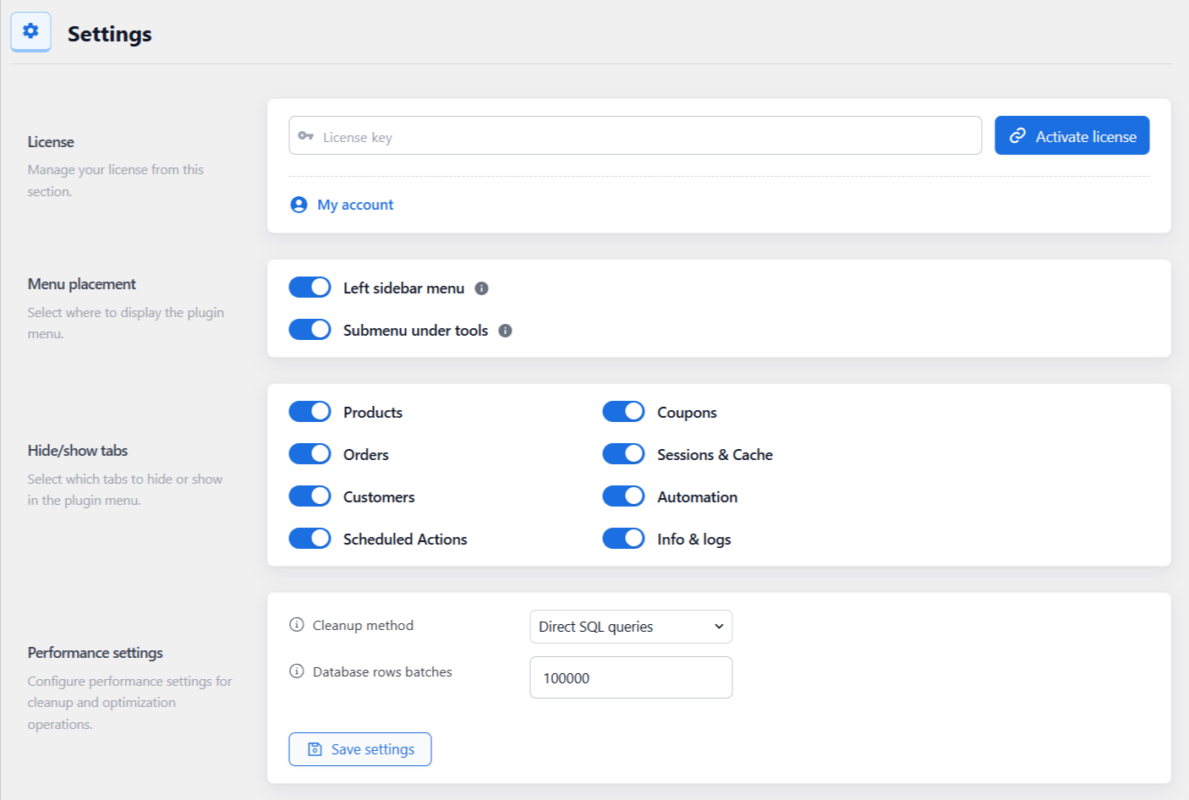
WOptimize can be adjusted to match the way you manage WordPress:
- Manage your plugin license
- Place the WOptimize menu in the main WordPress admin menu or under Tools
- Show or hide plugin sections that are not relevant to a particular store
- Choose between native WordPress functions and direct SQL cleanup
- Configure the number of database rows processed in each batch
The plugin is also compatible with WordPress Multisite, making it suitable for agencies and teams managing more than one WooCommerce site.
14. A Safer WooCommerce Cleanup Workflow
WOptimize is designed around a deliberate cleanup process:
- Back up the database or prepare a staging copy.
- Review the Overview page to identify the areas with accumulated data.
- Configure retention so recent or operationally important data is preserved.
- Open the preview and inspect the records using search, filters, and sortable columns.
- Delete selected records first when you want to validate a cleanup on a smaller set.
- Purge the verified cleanup types once you are comfortable with the results.
- Create automated tasks to maintain the store using the same rules.
- Review automation logs periodically to confirm that maintenance is running as planned.
This workflow provides the speed of one-click cleanup without removing the visibility and control required for a production store.
15. Who Is WOptimize For?
WOptimize is especially useful for:
- WooCommerce store owners who want a clearer and more focused way to maintain store data
- Developers who need previews, filters, HPOS-aware links, cleanup methods, and technical logs
- Agencies that want repeatable cleanup policies and automation across client stores
- Large or long-running stores with years of orders, scheduled actions, sessions, revisions, and orphaned records
Unlike a general WordPress database cleaner, WOptimize understands the data structures and maintenance tasks that are specific to WooCommerce.
Final Thoughts
WooCommerce database maintenance should not mean manually searching through tables or deleting data without knowing what it belongs to.
WOptimize brings 39 WooCommerce cleanup and diagnostic tools into one organized interface. It helps you remove routine clutter, investigate questionable records, preserve recent data with retention rules, preview results before deletion, and automate the maintenance you have already verified.
The goal is simple: give you the control needed to keep your WooCommerce store’s database lean, organized, and easier to maintain.
Explore WOptimize and choose your license →
For setup and usage details, visit the WOptimize documentation overview. If you have a question about your store or cleanup strategy, you can also contact the SigmaPlugin team.
